Jobs overview
Use Jobs to find current and completed work across customers, locations, business units, job types, and technicians.
Last verified July 22, 2026 · Nexus web app
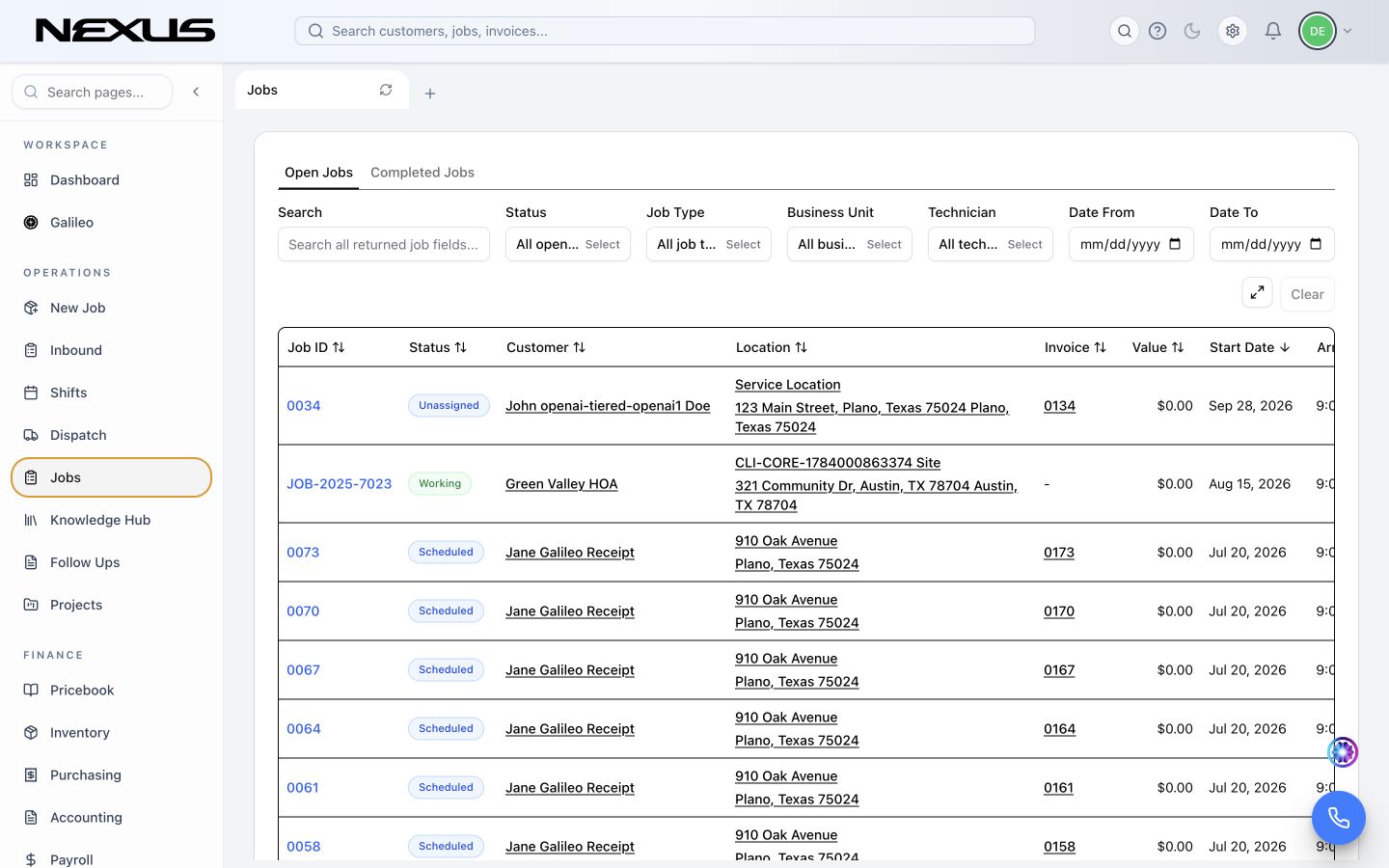
The Jobs table keeps its filters above the results so you can narrow a large work list without leaving the page.
Open the Jobs page
Click Jobs in the main navigation.
Use the tabs at the top of the workspace:
- Open Jobs shows work that still needs attention.
- Completed Jobs shows work that has been finished.
Find a job
- Click Search all returned job fields....
- Search by job number, customer, location, invoice, technician, or other visible job information.
- Use any of these filters when you need a narrower list:
- Status
- Job Type
- Business Unit
- Technician
- Date From
- Date To
- Click Clear to remove the filters.
Read the jobs table
Each row shows:
| Column | What it tells you |
|---|---|
| Job ID | The job number; click it to open the job |
| Status | The job's current stage |
| Customer | The customer connected to the work |
| Location | Where the work is being performed |
| Invoice | The connected invoice, when one exists |
| Value | The current job value |
| Start Date | The scheduled date |
| Arrival Window | The time range given to the customer |
| Technician | The assigned team member |
Click a customer, location, invoice, or job number to open that record.
Sort the results
Click a column name that includes sorting arrows. Click it again to reverse the order. Sorting is useful after filters are applied, especially for date, status, customer, and technician reviews.
What happens next
Opening a job takes you to the job workspace, where you can manage the appointment, assignments, files, communications, estimate, invoice, and job financials.
Troubleshooting
A job is missing
Check both Open Jobs and Completed Jobs, clear every filter, then search again by job number or customer name.
The date range returns no jobs
Remove Date From and Date To to confirm the job exists, then apply a wider range.